
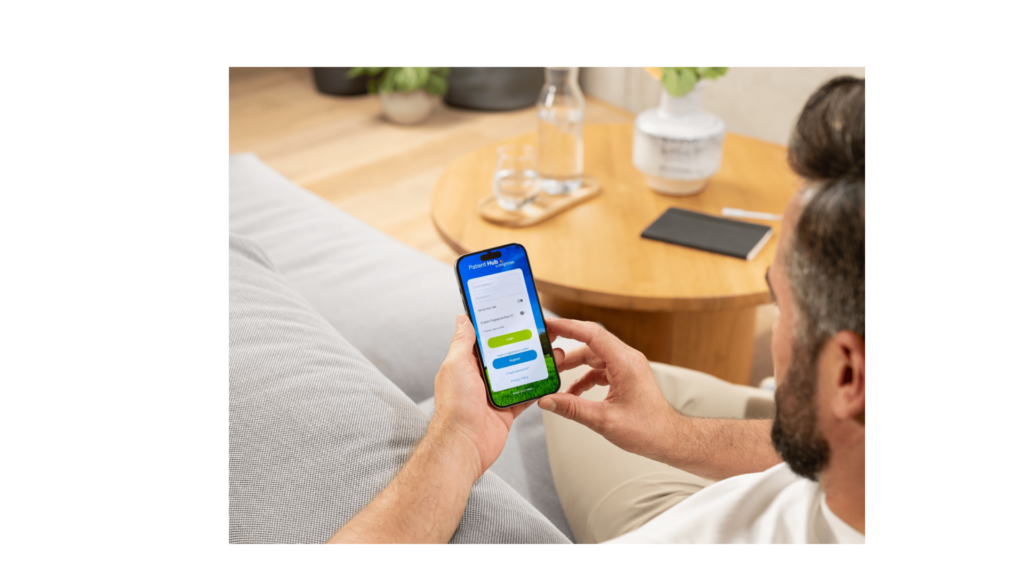
Your HME Patient Hub is Here
Manage your HME care from your phone with Patient Hub. View appointments, message HME, track deliveries, request resupply and more.
Manage your HME care anytime, anywhere
The HME Patient Hub makes it easier to stay connected with HME and manage your account from your phone. From checking upcoming appointments to tracking deliveries, you can access important information and take care of everyday tasks without having to call or stop by.
Getting started is easy. Download the Patient Hub app and activate your account using your personal activation code.
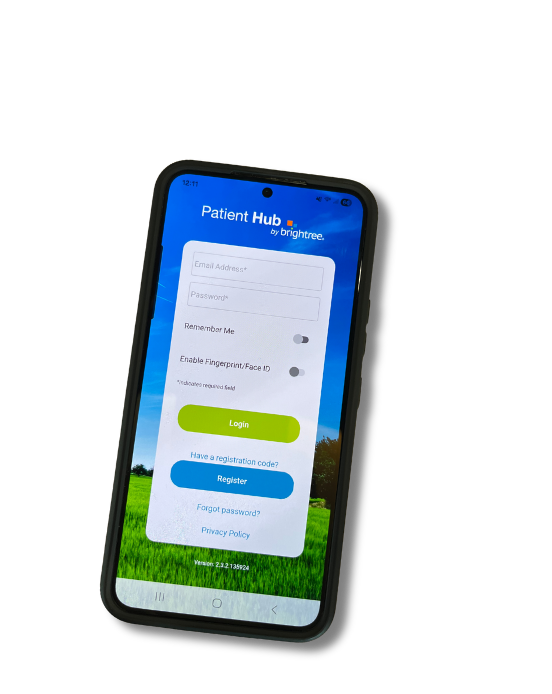
What can you do with Patient Hub?
Patient Hub puts convenient access to your HME account right at your fingertips.
View upcoming appointments
Keep track of your upcoming appointments with HME in one convenient place.
Send Messages to HME
Have a question or need to communicate with our team? Send messages securely through Patient Hub.
Track Your Deliveries
See the status of your HME deliveries so you know when to expect your equipment or supplies.
Request Resupply
When you’re eligible for replacement supplies, you can use Patient Hub to request your resupply.
Update Your Insurance Information
Keep your insurance information up to date through your HME account.
Check Order Eligibility
See whether you’re currently eligible to order eligible supplies through Patient Hub.
Ready to get started? Activate your HME Patient Hub in 3 Steps
1. Download the Patient Hub App
Download the Patient Hub by Brightree app from the Apple App Store or Google Play or visit the web portal.
2. Find Your Personal Activation Code
Your activation code connects your Patient Hub account to your HME patient record.
If you have an email address on file with HME:
We will send your personal activation code by email. Check your inbox for an email from HME with the subject line “Welcome to Patient Hub”
Don’t have an email on file—or can’t find your email?
No problem. Contact HME or stop by either of our locations and a team member can provide your activation code.
Please note: You will still need to download the Patient Hub app to complete your account setup.
3. Open Patient Hub & Complete Your Account
Open Patient Hub and enter your personal activation code. Follow the prompts to finish setting up your account.
Once you’re set up, you’re ready to use Patient Hub!
Frequently Asked Questions
What is HME Patient Hub?
Patient Hub is HME Home Medical’s digital patient portal. It gives you convenient and secure access to information and services related to your HME account from your mobile device.
What can I do in Patient Hub?
Depending on your account and services with HME, you can view upcoming appointments, send messages to HME, track deliveries, request eligible resupply orders, update insurance information, check order eligibility and more.
How do I get my activation code?
If you have an email address on file with HME, we will send your personal activation code by email. If you don’t have an email on file — or can’t find the email — contact HME or stop by either location and we’ll provide your code.
Do I need to download the app?
Yes. You will need to download the Patient Hub by Brightree app and enter your personal activation code to complete your account setup.
I received the activation email. What do I do now?
Download the Patient Hub by Brightree app from the Apple App Store or Google Play. Open the app and enter the personal activation code provided in your HME email. Then follow the prompts to complete your account setup.
I can't find my activation email. What should I do?
First, check your spam or junk folder. If you still can’t find it, contact HME at 800-236-2619 or stop by either HME location. We can provide your activation code.
Can I get help setting up Patient Hub?
Absolutely. If you need your activation code or have questions about getting started, contact HME or stop by either of our locations. Our team is happy to help you get set up.
Get Started with Patient Hub
Getting started with Patient Hub is easy. If you have questions or need assistance, please HME Home Medical and we’re happy to assist.